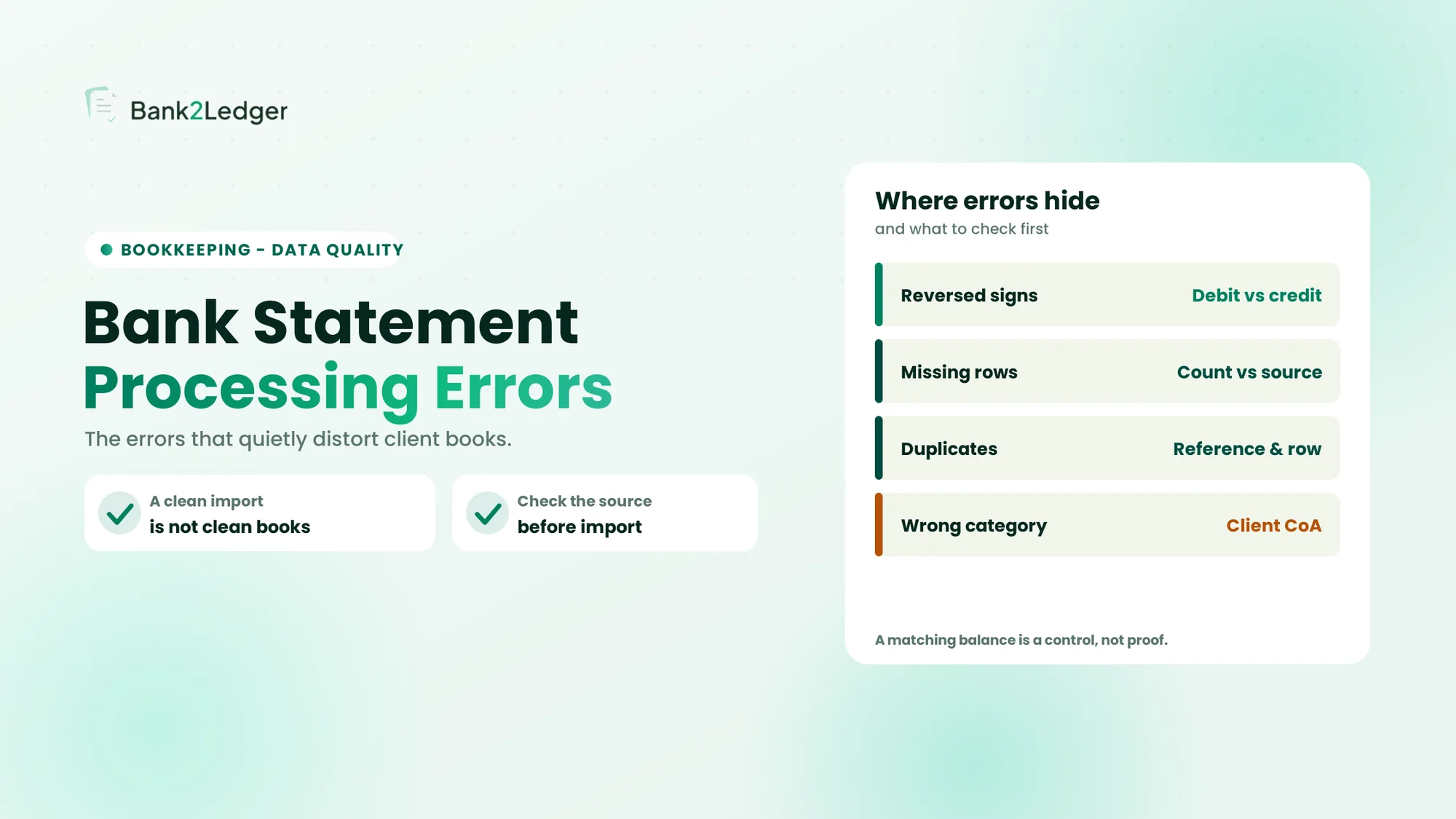
Before importing converted bank-statement data into QuickBooks, accountants should verify the source statement identity, statement period, transaction completeness, amounts, debit/credit direction, dates, descriptions, target QuickBooks account and potential overlap with existing transactions. A file being technically importable does not by itself prove that the underlying data is complete or correct. This article introduces a seven-check framework (Source, Period, Completeness, Amounts, Direction, Account, Reconciliation) that sits between conversion and import, covering the verification step most conversion guides skip entirely.
The workflow everyone pictures vs. the one that actually works
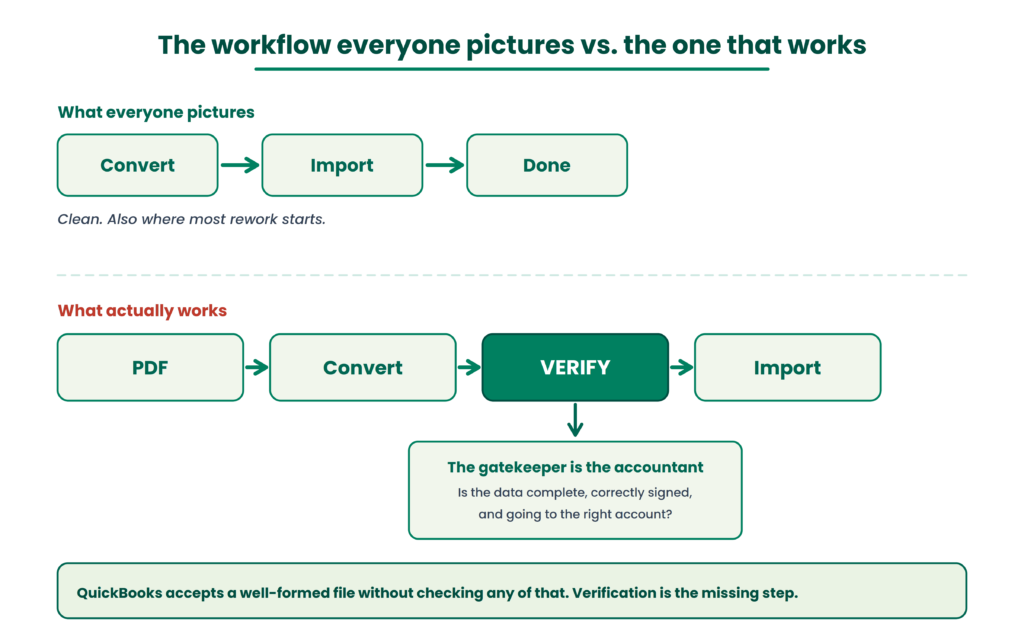
A client sends six months of bank statements as PDFs. The accountant converts them into a QuickBooks-compatible format. Import. Done.
That three-step version is clean. It’s also where most rework originates.
The conversion itself (PDF to structured transaction data) is a solved problem at this point. Multiple tools handle it. What isn’t solved, and what no file format can solve for you, is whether the data inside that file is actually ready for your books.
QuickBooks will accept a well-formed CSV or QBO file without asking whether the transactions inside it are complete, correctly signed, or destined for the right account. That’s not a bug. QuickBooks is an accounting system, not a bank statemenbant processing gatekeeper. The gatekeeper is the accountant.
This article covers the seven things worth checking before you let converted statement data through.
What bank statement conversion for QuickBooks actually involves
The mechanical workflow is short and well-documented elsewhere:
→
Transaction extraction
→
Structured data
→
QuickBooks format (CSV, QBO, OFX)
→
Import
That’s the technical path. The accounting path inserts a verification layer between “structured data” and “import.” That layer is where this article lives.
Competitors have written extensively about the conversion mechanics, file formats, and import steps. We’re not going to retread that ground. If you need a walkthrough of QBO file structure or CSV column mapping, those resources exist. What’s harder to find is a clear framework for what to verify once you’re holding the converted file and before you push it into QuickBooks.
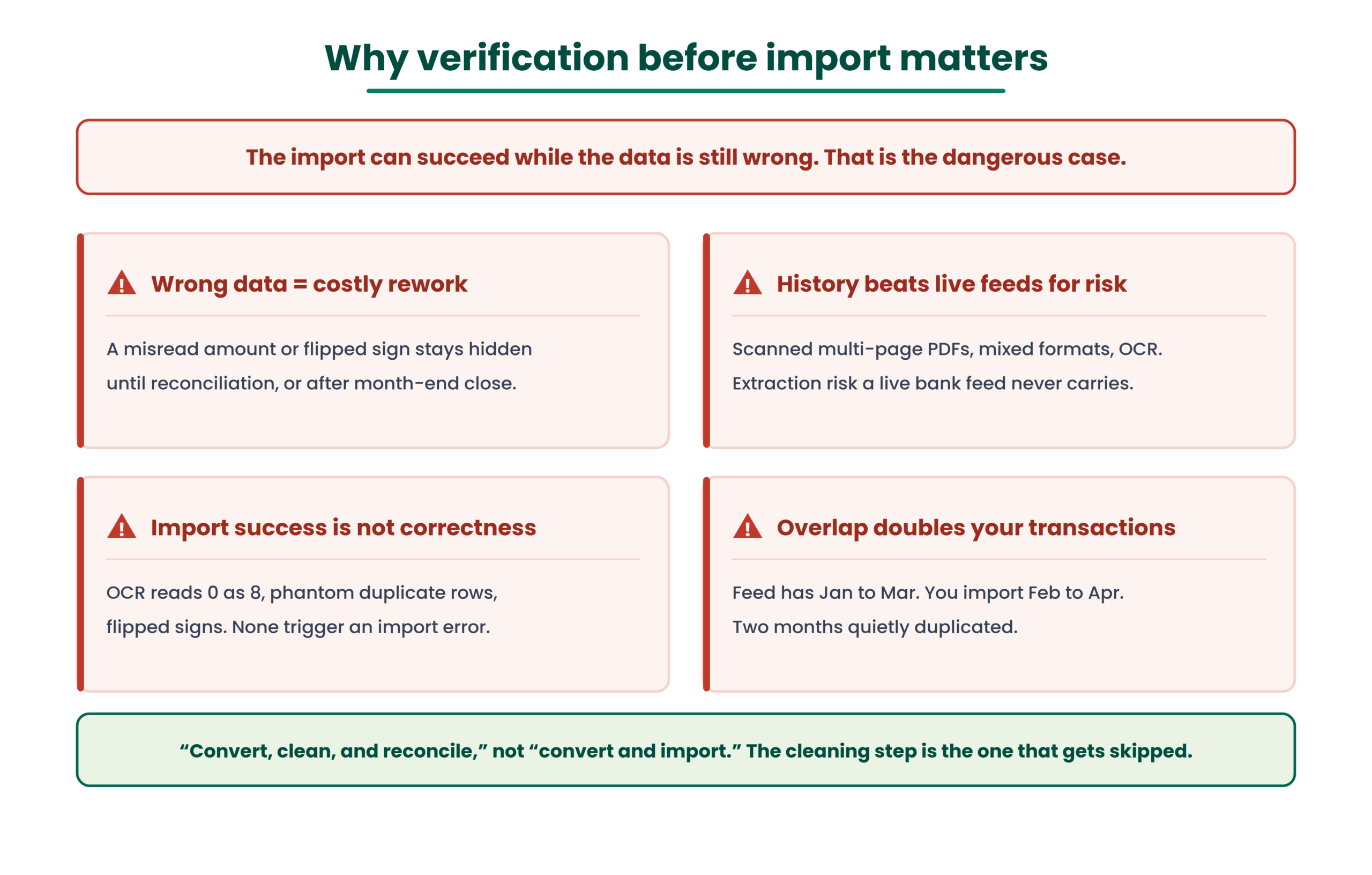
Why verification before import matters more than most guides suggest
Importing wrong data creates expensive downstream rework
A misread amount or a flipped debit/credit sign doesn’t announce itself at import. It surfaces during reconciliation, or worse, after month-end close when a client’s P&L looks wrong and you’re tracing backward through hundreds of transactions to find the three that broke.
Intuit’s own help documentation warns that CSV imports fail on formatting and unsupported characters. But formatting failures are the easy ones. They stop the import. The dangerous scenarios are the ones where the import succeeds and the data is still wrong.
Historical statements carry more risk than live bank feeds
Bank feeds stream transactions directly from the institution. Statement conversion is a one-time import workflow, often covering months or years of historical activity. Multi-page scanned PDFs, varying statement formats across periods, password-protected files, OCR on low-quality scans. Each of these introduces extraction risk that doesn’t exist in a live feed.
Practitioner discussions in QuickBooks community threads consistently describe the process as “convert, clean, and reconcile,” not “convert and import.” That middle step, the cleaning, is what this framework formalizes.
A successful import does not mean correct data
QuickBooks will show you a confirmation screen. Transactions will appear in the bank register. Everything looks normal.
But OCR can misread numeric characters (0 for 8, 1 for 7). Transaction descriptions can wrap across PDF lines and create phantom duplicate rows. Signed amount logic can flip, turning expenses into deposits. None of these trigger an import error. They all trigger reconciliation problems later.
Overlapping periods create duplicates that are tedious to unwind
If a bank feed already captured January through March and you import a converted statement covering February through April, you’ve potentially doubled two months of transactions. Duplicate handling depends on the import method and workflow, so file format alone isn’t a substitute for checking date ranges against what already exists in QuickBooks.
The 7 checks before importing bank statement data into QuickBooks
This is the framework.
→
Period
→
Completeness
→
Amounts
→
Direction
→
Account
→
Reconciliation
1Check the source statement
Before looking at the converted data, look at the PDF. Is this the correct client? The correct legal entity? The correct bank account?
A company might have an operating account, a savings account, two credit cards, and a merchant services account. Five accounts, five potential import destinations. Importing an operating account statement into the credit card register is a mistake that’s obvious in hindsight and invisible in the moment.
Confirm the bank name, account number (at least last four digits), and statement type before anything else.
2Check the statement period
Verify the beginning date, ending date, and whether this period aligns with the bookkeeping window you’re actually trying to close.
For catch-up bookkeeping, check for gaps between statements. If you have January and March but not February, importing both creates a hole in the ledger that won’t surface until reconciliation.
Also check overlap. Intuit’s documentation notes that manual upload supports transactions from earlier periods, but it doesn’t automatically know what’s already in your register from a bank feed or a previous import.
3Check transaction completeness
This is where a lot of converted files silently fail.
Are all statement pages present in the source PDF? Did the extraction capture every transaction row? Multi-page statements are a known friction point. Page breaks can split a single transaction across two rows or drop a row entirely. I’ve seen a twelve-page statement produce a converted file with transactions from only eleven pages because the last page was a summary the parser treated as data.
Opening balance plus net movement should equal the closing balance printed on the statement. That tie-out is necessary. But a balance match alone doesn’t guarantee every individual transaction was captured, because offsetting errors (a missed debit and a missed credit of the same amount) can produce a correct total from incomplete data. For a deeper look at why that’s the case, see our article on missing transactions.
4Check amounts
Spot-check transaction amounts against the source PDF. Zoom into any line where the OCR might have confused similar characters. A $1,847.00 that becomes $1,347.00 won’t break the import. It will break the reconciliation.
Also check decimal placement and currency. Statements from international banks sometimes format thousands separators and decimal points differently than what QuickBooks expects.
5Check transaction direction
Debits and credits. Money in and money out. Positive and negative signs.
This is where source statement formatting creates real problems. Some banks use separate debit and credit columns. Others use a single amount column with positive/negative signs. Some show withdrawals as unsigned numbers in a “withdrawals” column. Each representation requires different handling during conversion, and if the converter’s sign logic is wrong, every expense becomes a deposit or vice versa.
Check five to ten transactions manually. If debits are showing as credits, the entire file needs correction before import.
6Confirm the correct QuickBooks account
Intuit’s documentation explicitly notes that users select the QuickBooks account into which uploaded transactions should go. This selection happens at import time, and it’s entirely manual.
For a firm handling forty clients, each with multiple bank accounts, this is a real error surface. Importing a Chase checking statement into the Wells Fargo register doesn’t trigger a warning. It just creates a mess.
Also consider whether the target account already contains transactions for the same period. If you’re importing into an account that has an active bank feed, you need to know the feed’s date range before you import anything.
7Check for overlap and reconciliation risk
Before importing, establish what already exists. Has this period been partially or fully imported before? Is there a bank feed covering some of these dates? What’s the opening balance in QuickBooks for this account, and does it match the statement’s opening balance?
This check prevents the most common post-import headache: duplicate transactions that make bank statement reconciliation impossible without manual cleanup.
Verify before you import, not after
Bank2Ledger handles extraction, balance verification, and pre-accounting before data ever reaches QuickBooks, so the file you import is complete and correctly signed from the start.
Where practitioners disagree
There’s an active debate about whether QBO files with FITID-based duplicate detection make the overlap check unnecessary. Some practitioners argue that Web Connect’s built-in duplicate handling is reliable enough to skip manual date-range verification. Others (and I’m in this camp) treat any automated duplicate detection as a safety net, not a replacement for knowing what’s already in the register. The logic is simple: if the duplicate detection works, you’ve lost nothing by checking. If it doesn’t catch something, you’ve saved yourself hours.
The format doesn’t replace data validation
CSV gives you a visible, editable table. QBO gives you a QuickBooks-oriented Web Connect format that can reduce manual mapping. Both are valid import paths depending on your workflow and QuickBooks version.
But a better import format does not make incorrect source data correct. A perfectly structured QBO file built from a badly extracted PDF will import cleanly and reconcile terribly. Format choice is a workflow decision. Data validation is an accounting decision. They’re separate.
What to check after importing
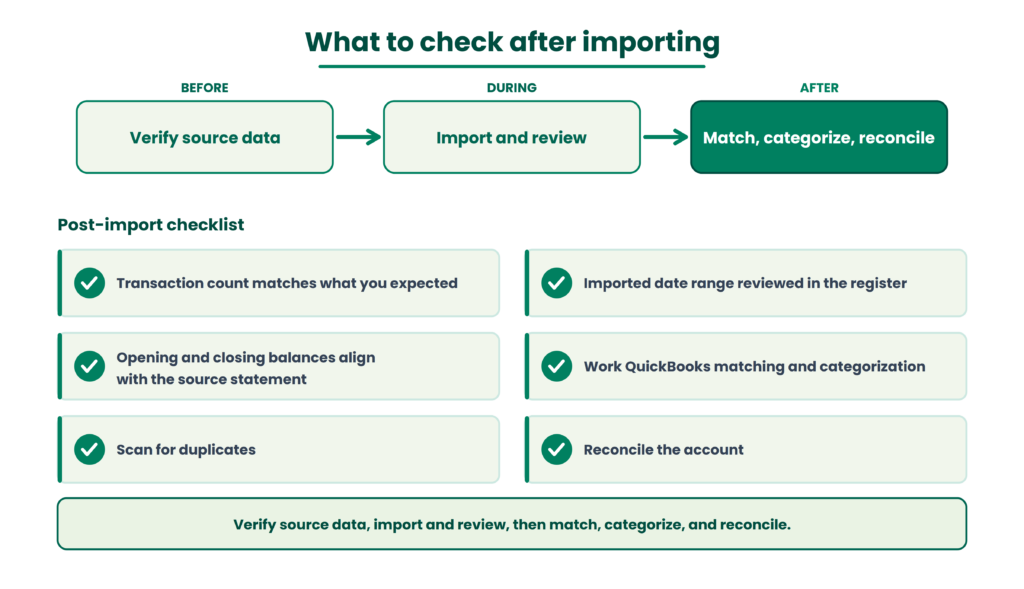
The seven checks cover pre-import. Post-import has its own short list:
Confirm the transaction count matches what you expected. Review the imported date range in the bank register. Check that opening and closing balances align with the source statement. Work through QuickBooks’ matching and categorization workflow (Intuit’s documentation recommends this explicitly for uploaded transactions). Scan for duplicates. Then reconcile the account.
This creates a clean before/during/after model: verify source data, import and review, then match, categorize, and reconcile.
Conversion, verification, categorization, and reconciliation are four different things
Conversion creates structured transaction data from a PDF. Verification checks whether that data agrees with the source. Categorization assigns the correct accounting treatment using the client’s chart of accounts. Reconciliation confirms the accounting records agree with bank activity.
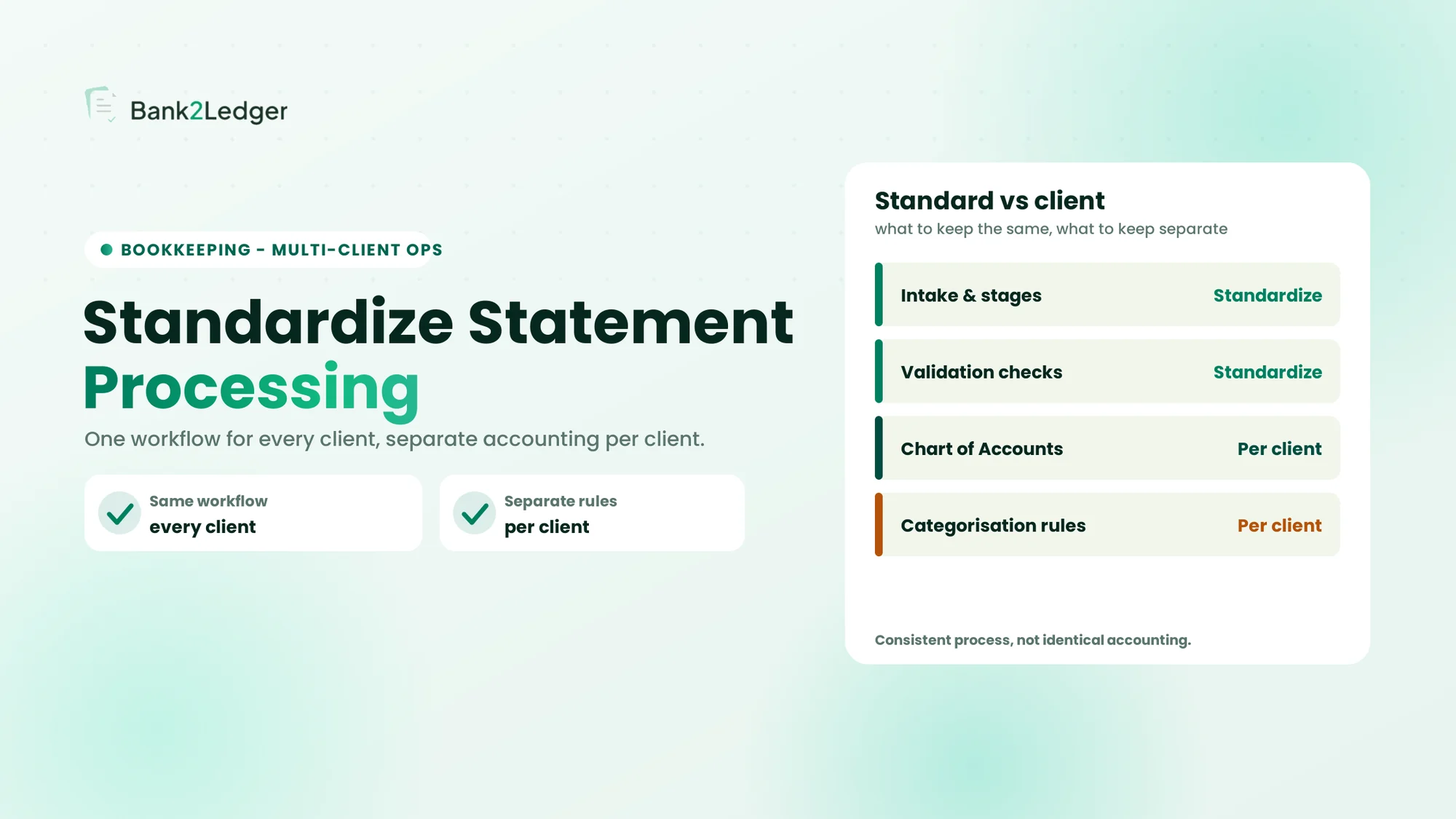
These four steps connect but they don’t substitute for each other. Converting a statement doesn’t verify it. Verifying it doesn’t categorize it. And categorizing it doesn’t reconcile it. Each step answers a different question, and skipping any one of them creates work later.
For why categorization rules need to be built per client rather than applied generically, see our piece on client-specific transaction categorization.
A pre-import checklist
Source
Correct client, correct bank account, correct statement period.
Data
All pages processed, all transactions present, dates checked, amounts checked, debit/credit direction checked, descriptions reviewed.
QuickBooks
Correct account selected, existing date range checked, potential overlap checked, import format confirmed.
After import
Transaction count reviewed, transactions matched, opening/closing balances checked, account reconciled.
If your firm processes client bank statements regularly and the verification step is where time disappears, Bank2Ledger handles extraction, balance verification, and pre-accounting before data reaches QuickBooks or any other platform.
Frequently asked questions
Can you import a bank statement into QuickBooks?
QuickBooks Online supports manual upload of bank and credit card transactions in formats including CSV, QBO, and OFX. Intuit’s current workflow also describes options for PDF and image statement uploads. The available formats and exact steps depend on your QuickBooks version, so verify against current Intuit documentation before importing.
What should accountants check before importing bank statement data into QuickBooks?
Verify the source statement identity, the statement period, transaction completeness (including a balance tie-out), individual amounts, debit/credit direction, the target QuickBooks account, and any overlap with existing transactions or bank feeds.
How do you avoid duplicate bank transactions in QuickBooks?
Check the date range of existing transactions in the target account before importing. If a bank feed is active, know exactly which dates it covers. Some import methods include duplicate detection, but accountants should treat that as a secondary safeguard, not a primary control.
Can historical bank statements be imported into QuickBooks?
Yes. Intuit’s documentation explicitly supports uploading transactions from earlier periods. Historical imports typically require more verification because they often involve scanned PDFs, multiple statement periods, and accounts that may already contain partial data.
Should bank statement data be validated before importing?
Source-statement validation (confirming the extracted data matches the PDF) should happen before import. Full accounting reconciliation happens after import, once transactions are in QuickBooks and can be compared against the bank register. These are different steps with different purposes.
What format should a bank statement be in for QuickBooks?
QuickBooks currently supports CSV, QBO, and OFX for transaction uploads. The right choice depends on your workflow. CSV is easier to inspect and edit. QBO is designed for Web Connect workflows and may reduce manual mapping. Neither format compensates for incorrect source data.
Your next problem after import isn’t the file format. It’s the categorization queue in QuickBooks, and whether the bank statement extraction accuracy was good enough that you’re categorizing real transactions instead of cleaning up phantom ones.
Bank statements in. Clean ledgers out.
Bank2Ledger extracts, verifies balances, and handles pre-accounting so your firm imports complete, correctly signed data into QuickBooks and spends its time reconciling, not cleaning up.