It’s the 3rd of the month. Your inbox has 14 PDFs from 9 different clients. Three are scanned. One is sideways. Two are password-protected, and you won’t discover that until the upload fails silently at 2 PM.
You already know what’s coming. Typing. Reformatting. Fixing columns in Excel. Renaming headers so QuickBooks stops rejecting the import. Correcting the OCR that read “$1,250.00” as “$1,2S0.OO.” Then doing it again for the next client.
The accounting software isn’t the bottleneck here. QuickBooks, Xero, Sage—they all import transactions just fine. The bottleneck is everything that happens before the import. The extraction. The cleanup. The categorization. The formatting.
That gap between receiving a bank statement PDF and getting clean data into your general ledger? That’s called pre-accounting. And it’s where most bookkeeping hours quietly disappear.
This guide covers exactly how to close that gap—without typing a single transaction.
Why Bank Statement PDFs Are Still a Massive Bookkeeping Bottleneck
Bank statement PDFs cannot be directly imported into accounting software because they are formatted for human reading, not data processing. Every bank structures its statements differently, and scanned documents add OCR complexity that makes automated extraction unreliable without proper tools.
Here’s the core problem: PDFs are visual documents. They’re designed to look good on paper. They aren’t structured data files. There’s no universal column layout. Chase formats dates one way. HSBC another. Barclays throws in running balances mid-page. A regional credit union might put debits and credits in a single “Amount” column with no sign indicator.
Scanned statements make everything worse. If the scan is under 300 DPI—or worse, a phone photo of a paper statement—most OCR engines return zero usable rows. I’ve watched a senior bookkeeper spend 3 hours trying to extract data from a phone-photographed statement before realizing the image was simply too blurry for any tool to parse.
So what actually eats your time isn’t the accounting. It’s the data preparation:
- Retyping transactions from a PDF
- Cleaning up OCR output in spreadsheets
- Reformatting CSV headers to match import requirements
- Fixing date formats (
MM/DD/YYYYvs.YYYY-MM-DD) - Categorizing every single line item
That’s hours per client. Every month.
Common Ways Firms Convert Bank Statements Today
Most accounting firms use one of five approaches to get bank statement data into their software. Each has significant limitations that become obvious at scale.
Manual entry. Still the most common method for firms handling scanned statements. Accurate if you’re careful, but painfully slow and impossible to scale.
Excel copy-paste. Open the PDF, select the table, paste into Excel. Except columns merge. Dates break. Amounts lose their formatting. You spend more time fixing the spreadsheet than you saved by not typing.
Basic OCR tools. These read text from images or PDFs. They extract characters, not structured transactions. The difference matters. OCR gives you raw text. You still need to parse it into date, description, amount, and balance columns. And OCR misreading “0” as “O” or “$” as “S” is so common it’s practically a feature.
Generic AI tools (ChatGPT, Gemini, Claude). They can parse small tables if you paste text in. But they hallucinate numbers. They can’t verify balances. They don’t connect to your chart of accounts. They don’t remember your rules. For professional bookkeeping, this is a non-starter.
Accounting software built-in imports. QuickBooks and Xero accept CSV and QBO files. But they expect perfectly formatted files with specific headers. They don’t extract data from PDFs. They don’t categorize. They just receive what you give them.
None of these solve the actual problem: turning a raw PDF into a verified, categorized, import-ready ledger.
What Actually Happens Before Data Reaches QuickBooks or Xero
Pre-accounting is the process of preparing financial documents—like bank statements—for accounting software by extracting, verifying, categorizing, and formatting transactions before they enter the general ledger. It sits between document receipt and software import.
The full workflow looks like this:
Steps 2 through 6 are where the real work lives. And they’re almost entirely invisible to anyone who hasn’t done bookkeeping at scale.
How AI Converts Bank Statements into Ready-to-Import Ledgers
AI-powered pre-accounting software reduces manual bookkeeping by extracting transactions directly from bank statement PDFs, validating balances, categorizing entries using predefined accounting rules, and exporting import-ready ledgers for accounting software.
Here’s how it works, step by step:
1Upload
Drag the PDF into the platform. For batch processing, upload up to 50 statements simultaneously. If the PDF is password-protected, you’ll need to remove the password in Adobe Acrobat first—cloud tools can’t decrypt these files, and the upload fails silently.
✓ Visual checkpoint: The file name appears in a processing queue with a green checkmark.
2Extraction
The AI identifies transaction tables and parses each row into structured columns: date, description, amount, balance. A standard 50-row statement processes in under 4 seconds locally, or 15–45 seconds via cloud.
✓ Visual checkpoint: A scrollable data table appears with no lingering “Processing…” spinner.
3Validation
The platform checks whether opening balance + all transactions = closing balance. If the math doesn’t reconcile, it flags the discrepancy before you export anything.
4Categorization
Transactions get mapped to your chart of accounts using client-specific rules. If the description contains “AWS,” it goes to Software Expense. If it contains “Uber,” it goes to Travel. Every correction you make trains the system for next time.
5Review
Low-confidence entries land in a review queue. You approve, override, or flag them. The “Review” button shifts from gray to blue once you’ve verified the data.
6Export
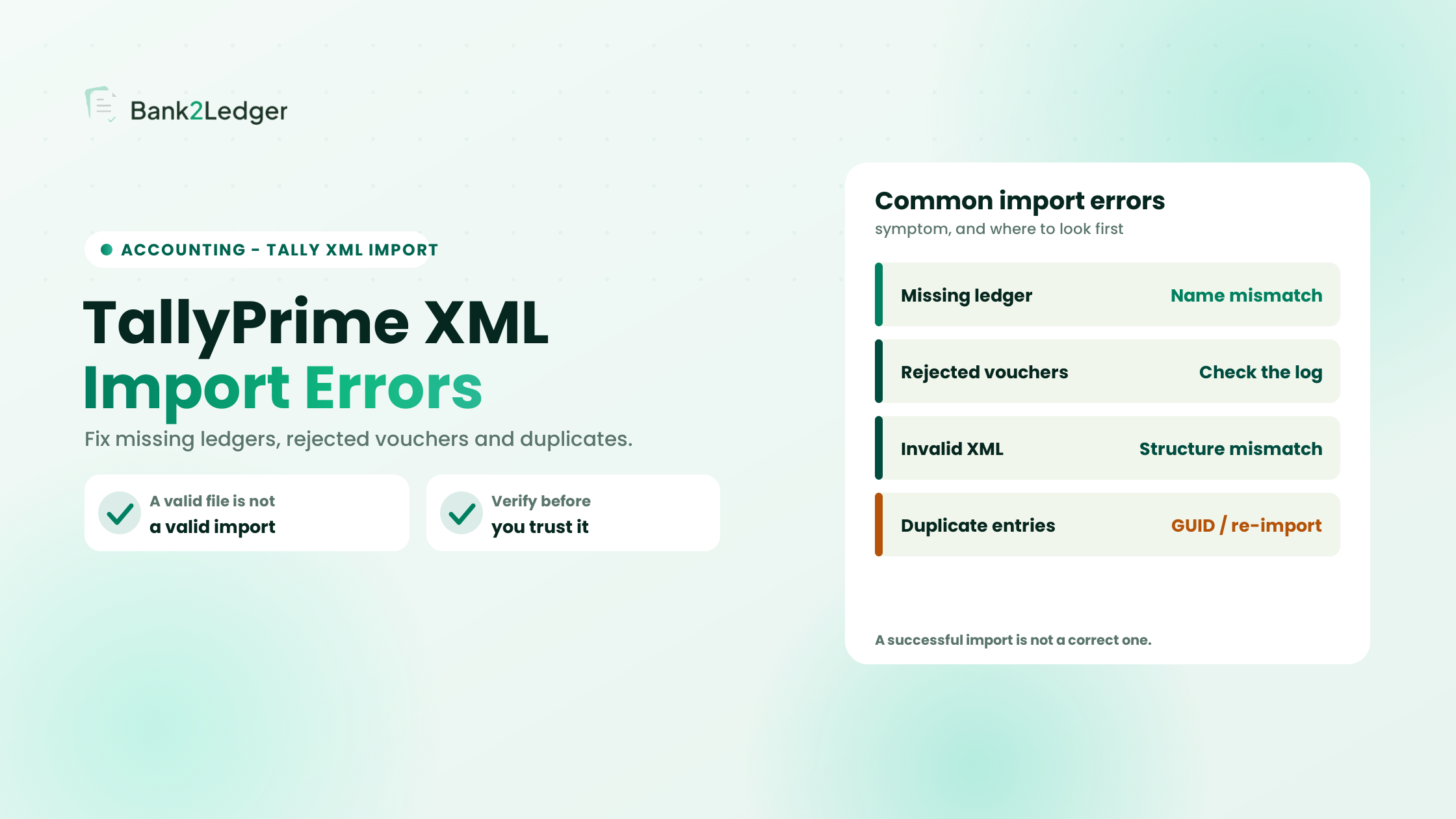
Select your format—QBO for QuickBooks, CSV for Xero (with dates formatted as YYYY-MM-DD), XML for Tally, or Excel for everything else. Download and import.
Pro tip: If the CSV header says “Txn Date” but QuickBooks expects “Date,” the import fails. Check column headers before uploading.
OCR vs AI vs Pre-Accounting Platforms
| Feature | Basic OCR | AI Extraction | Pre-Accounting Platform |
|---|---|---|---|
| Accuracy | 70–85% (character-level) | 90–95% (transaction-level) | 95–99% (with balance verification) |
| Learning capability | None | Limited | Client-specific rule memory |
| Balance verification | No | No | Yes (mathematical reconciliation) |
| Categorization | No | Basic | Chart of accounts mapping |
| Audit trail | No | No | Full (linked to source PDF) |
| Export formats | Text/CSV | CSV | QBO, CSV, XML, Excel |
| Scalability | Low | Medium | High (batch processing) |
The difference between OCR and AI extraction is structural. OCR reads characters from images. AI extraction understands transaction patterns—it knows that “01/15/2026” is a date, “AMAZON MARKETPLACE” is a description, and “-$47.99” is a debit. Pre-accounting platforms go further by validating, categorizing, and formatting that data for specific accounting software.
What Makes a Good Bank Statement Converter?
Before evaluating any tool, run through this checklist:
- ☐ Reads both digital and scanned PDFs (minimum 300 DPI)
- ☐ Works with statements from any bank worldwide
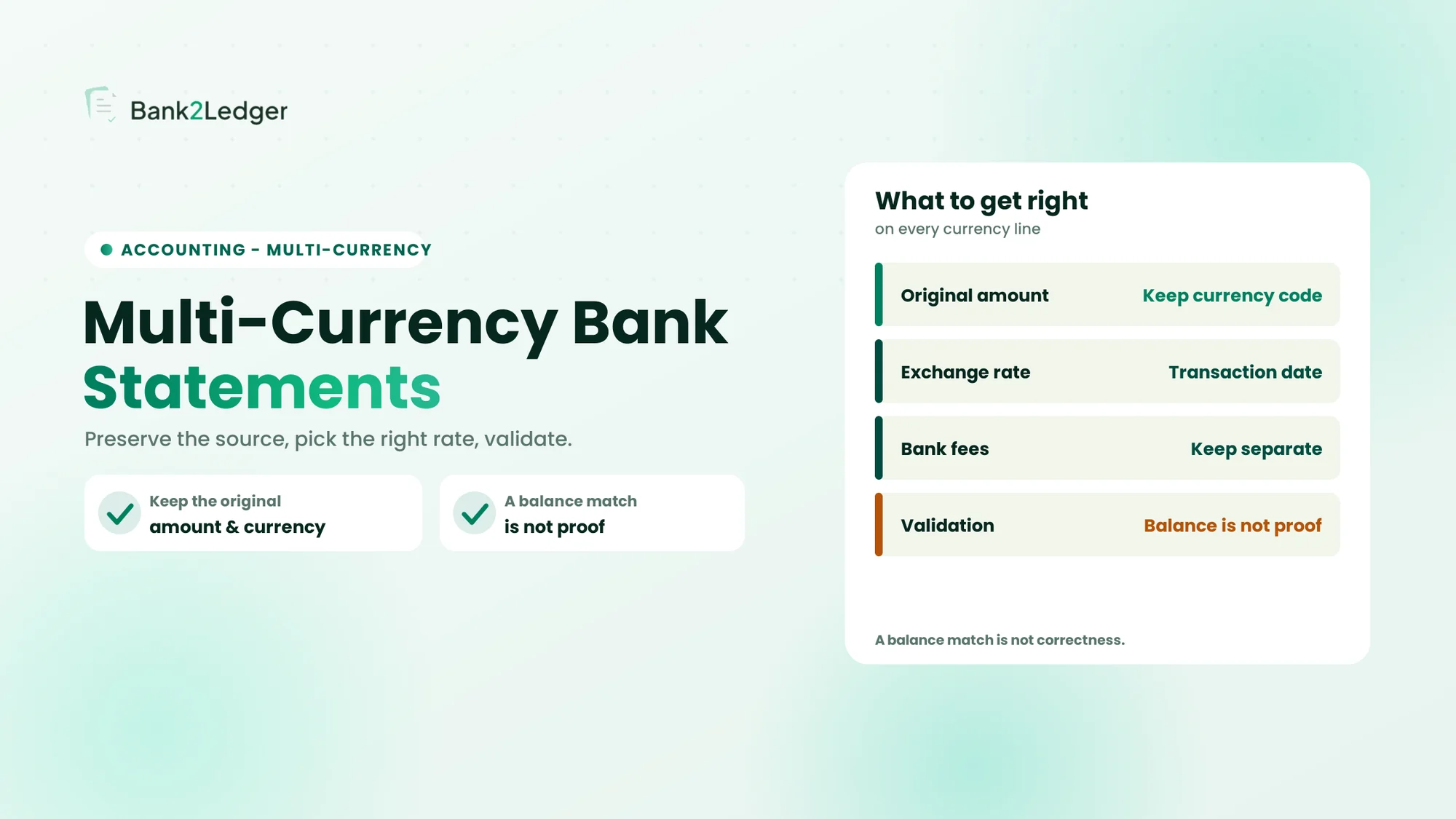
- ☐ Supports multiple currencies
- ☐ Verifies balances mathematically
- ☐ Allows client-specific categorization rules
- ☐ Maps to your chart of accounts
- ☐ Exports in QBO, CSV, XML, and Excel formats
- ☐ Maintains a full audit trail linked to source documents
- ☐ Includes a review queue for exceptions
- ☐ Handles batch uploads for multi-client firms
The one test that matters: If a tool can’t verify that opening balance + transactions = closing balance, you’re still doing reconciliation manually. That’s the single most important feature to check.
How Bank2Ledger Simplifies the Entire Workflow
After the extraction, validation, and categorization steps are clear, the question becomes: which platform handles all of them in one place?
Bank2Ledger is an AI-powered pre-accounting platform built specifically for this workflow. It sits between your client’s bank statement and your accounting software.
The process:
Each client maintains separate rules, separate ledgers, and separate history. Nothing crosses over. Every ledger entry links back to the original statement for audit purposes.
It doesn’t replace your accounting software. It handles the work your accounting software was never designed to do.
Real Example: 200-Page Bank Statement
A mid-sized outsourced accounting firm receives a 200-page bank statement from a construction client.
Traditional workflow
Manual typing6–8 hours
Spreadsheet cleanup1–2 hours
Categorization2–3 hours
Import and error correction1 hour
Total10–14 hours
With Bank2Ledger
Upload2 minutes
Review exceptions20–30 minutes
Export and import5 minutes
TotalUnder 40 minutes
The accountant’s judgment still matters. They still review exceptions. They still approve categorizations. But the 10+ hours of typing and reformatting? Gone.
Frequently Asked Questions
Can QuickBooks import PDF bank statements directly?
No. QuickBooks does not read PDF bank statements. It accepts CSV, QBO, and OFX files with specific column formatting. You need to extract and format the data from the PDF before QuickBooks can import it. A pre-accounting tool handles this conversion automatically.
Can Xero read bank statement PDFs?
Xero cannot process PDF bank statements natively. It requires CSV files with columns formatted as Date, Description, and Amount. The date format must be YYYY-MM-DD to avoid import errors. You’ll need to convert the PDF first.
What’s the difference between OCR and AI extraction?
OCR reads characters from images and converts them to text. AI extraction understands transaction structure—identifying dates, descriptions, amounts, and balances as distinct data types. OCR gives you raw text. AI gives you structured, usable transaction data.
How accurate is AI extraction from bank statements?
AI extraction accuracy ranges from 90–99% depending on statement quality. Digital PDFs yield higher accuracy than scanned documents. Balance verification catches extraction errors by confirming that opening balance plus all transactions equals the closing balance.
Can scanned bank statements be processed?
Yes, if the scan resolution is at least 300 DPI and the text is legible. Phone photos of paper statements typically fail because the image quality is too low for reliable character recognition. Always use a proper scanner.
Does it work with statements from any bank?
Pre-accounting platforms like Bank2Ledger support statements from thousands of banks worldwide, including Chase, HSBC, Barclays, ICICI, DBS, Standard Chartered, and regional institutions. The AI adapts to different statement formats automatically.
Can the system remember my accounting rules?
Yes. Client-specific rules persist across sessions. If you categorize “AWS” as Software Expense once, the platform applies that rule to every future occurrence for that client. Each client maintains independent rules and chart of accounts.
Is manual review still required?
Yes—and it should be. Low-confidence transactions require human approval. Automated categorization handles routine entries, but professional judgment remains essential for unusual transactions, new vendors, and edge cases. The review queue surfaces only the items that need attention.
Which accounting software is supported?
Most pre-accounting platforms export to QuickBooks (QBO format), Xero (CSV), TallyPrime (XML), Sage (CSV), Zoho Books (CSV), and Excel. The export format determines whether column mapping is automatic or requires manual header adjustment.
Stop typing transactions from PDFs.
Upload one real statement, watch it tie out, and export the file. Bank2Ledger turns a folder of PDFs into clean, coded, verified ledgers—ready to import into QuickBooks, Xero, Tally, Sage, or Excel.
The Missing Step Between Bank Statements and Accounting Software
The real challenge in converting bank statement PDFs into accounting software was never the import itself. QuickBooks, Xero, and Sage all handle imports efficiently. The challenge is preparing clean, accurate, categorized data that’s actually ready to import.
Pre-accounting fills that gap. It automates extraction, validates accuracy through balance verification, applies your firm’s categorization rules, and exports ledgers in the exact format your software expects—while keeping professional judgment where it belongs: with the accountant.
If your firm is still typing transactions from PDFs, the workflow between receiving statements and importing data is where your hours are disappearing. That’s the part worth fixing first.